
User guide / Getting started
Walkthrough: relative potency to an approved Method
Analyze a synthetic reference and two test preparations, save the report, then approve and reuse the settings in a Team.
Who can use this: Personal or Team development permission for the analysis. Use a Team and two assigned approvers for the Method/routine extension.
Get the synthetic inputs
This example uses a common-shape 4PL plate with eight levels and two measured replicates for each of three preparations. It should yield approximately 80% for Test alpha and 120% for Test beta. These are demonstration results, not customer qualification evidence or acceptance criteria for your assay.
Download the CSV below. Keep the setup note if you want to try the assisted alternative with the same measurements. All data and screenshot records are synthetic.
Configure the example manually
- Select your workspace. Open New analysis, choose Relative potency, then Configure manually. Choose file and select relative-potency-multi-preparation-4pl.csv.
- Check comma-delimited text, the 96-well plate and source range B6:M13; Confirm exact range if prompted. Continue to Map the plate.
- Choose Apply two-curve template before adding another sample. Choose + Add sample. Keep Reference standard and rename the two tests Test alpha and Test beta.
- For every row A–H, select each well that needs changing and edit Sample and Replicate. Columns 1–2 are reference replicates 1–2, columns 3–4 are Test alpha replicates 1–2, and columns 5–6 are Test beta replicates 1–2. Specifically, change column 3 to Test alpha replicate 1, column 4 to replicate 2, and columns 5–6 to Test beta replicates 1–2. Keep the template’s row-based levels: A is level 1 through H as level 8.
- Check 16 wells per preparation, 48 included measurements in total, no exclusions, and columns 7–12 unassigned. Continue to Define the dilution series. For each preparation, set Initial concentration to 128 ng/mL and Dilution factor to 2. The eight levels must be 128, 64, 32, 16, 8, 4, 2 and 1 ng/mL.
- Continue to Model and select Common-shape 4PL. Check Dose transformation: Natural logarithm; Response transformation: Untransformed; Weighting: Unweighted. Keep the example’s fixed default reference assignment of 100 and no additional user suitability criteria. Review all settings and wait for Draft saved.
| Plate wells | Preparation and replicates | Levels |
|---|---|---|
| A1:H2 | Reference standard; columns 1 and 2 are replicates 1 and 2 | Rows A–H: levels 1–8 |
| A3:H4 | Test alpha; columns 3 and 4 are replicates 1 and 2 | Rows A–H: levels 1–8 |
| A5:H6 | Test beta; columns 5 and 6 are replicates 1 and 2 | Rows A–H: levels 1–8 |
| A7:H12 | Unassigned, no observations | None |
Use assistance with the same inputs
Use the map and settings above to check the proposal before running it. The assistant’s wording and questions may vary.
- In a Team where you can develop analyses, begin a separate New analysis with Start conversation. Enter “Compare Test alpha and Test beta with Reference standard using common-shape 4PL and the supplied synthetic setup” in Message, then Send.
- Add the same CSV as Assay data and relative-potency-context.txt as Supporting document using Add input for each. Confirm Relative potency in Current analysis brief.
- Discuss any missing facts, then select Propose configuration. If asked for clarification, answer from the setup note. Inspect the saved draft against the map and settings above before running. Assistant wording may differ; compare the actual settings and cited evidence.
Run the analysis and save the report
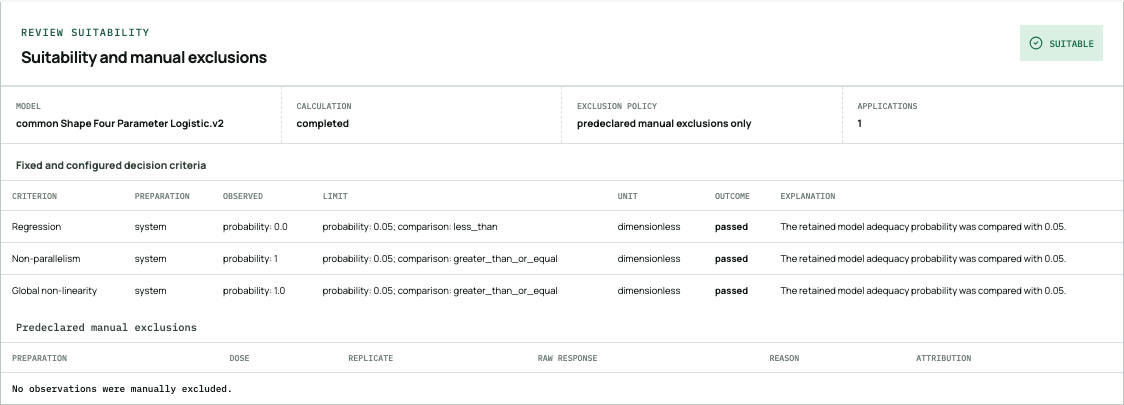
- Choose Run analysis. When the completed detail opens, inspect Model adequacy and comparability and Suitability and manual exclusions.
- Choose Load PDF preview. In the PDF report, check the separate Test alpha and Test beta results: approximately 80% and 120% respectively, with their intervals. For the unchanged synthetic recipe, the calculation and fixed suitability checks pass; no observations are excluded.
- Use Download PDF, reopen it and check both preparations and the intended source before filing the copy. Keep the saved analysis address for reopening.
Extend the example through approval and routine use
- As the result’s creator in a Team, enter a Method name such as Synthetic potency example and select Save as new Method draft. Open View Method draft and inspect the saved recipe and source report.
- Select two qualified current Team members under Required approvers, enter a reason explaining this synthetic exercise and Submit for review. Each person uses their own account and assigned review.
- Each approver opens Reviews, checks the exact Method version and evidence, enters Required decision reason and chooses Approve. Check the confirmation, confirm signing intent and complete Sign and approve or Continue with Google as displayed. After both decisions, check Approved · version 1.
- Open that approved Method and choose Run approved Method. Enter an Analysis name, upload the same synthetic CSV to demonstrate reuse, confirm B6:M13 and inspect the locked map and settings with Continue. Choose Run analysis.
- Check a new routine result linked to version 1. It should again show approximately 80% and 120%. Preview, download and reopen its own PDF report. Reusing synthetic measurements here demonstrates the workflow; real routine work uses a new assay source.
If the expected result does not appear
First check the map. The two-curve template originally assigns column 3 to the reference and columns 4–6 to one test; the three-preparation example requires the edits above. Confirm two replicates per preparation/level and an initial concentration of 128 for all three preparations.
If a unit is missing during assistance, provide the documented ng/mL dose unit and the setup note; do not guess from the file’s numeric values. If a calculation or suitability check fails, inspect it before using any numerical result. Do not remove observations simply to recover 80% or 120%.
Edition and printing
Provenarium User Guide · PROV-USER-GUIDE · Edition 1
Published 2026-09-20
These instructions apply to the product releases listed below.
Applicable product releases: release-2026.09.20.1
Instructions checked: 2026-09-20 · Software revision cbee590c9fac5ff117db4333ffa0404e9d1d8082